If you’ve clicked through Search appearance looking for a “Generative AI” or “AI Overview” filter, you didn’t miss it. It isn’t there. A lot of guides (an earlier version of this one included, sorry) told people to use a filter that Search Console doesn’t have.
What Google actually gives you is a separate report with impressions only, plus your normal Performance report with the AI clicks mixed in. That’s less than most of us want. But with two exports and a spreadsheet, you can still get a monthly picture of AI Overview traffic you can explain to a client without making numbers up. Here’s the setup, step by step.
- There’s no AI filter in Search appearance. AI Overview and AI Mode data lives in a separate Generative AI report under Performance.
- That report shows impressions only, by page, country, device and date. No clicks, no CTR, no queries.
- Clicks from AI Overviews are counted, but inside the normal Web totals. GA4 files them under Organic Search.
- The best public click estimate so far is about 0.9% CTR on AI impressions, from one site’s four-week opt-out test. Treat it as a rough yardstick.
- Start a monthly export now. If Google adds AI clicks around December 3, you’ll have a before and after.
What Search Console can and can’t show you
Short version: you can see when Google showed your link in an AI answer. You can’t see who clicked it. Here’s where each piece of data lives right now.
| Data | Where it lives | Can you isolate AI Overviews? |
|---|---|---|
| Impressions | Search Console, Generative AI report | Partly. AI Overviews and AI Mode come as one combined number |
| Clicks | Search Console, Performance report (Web) | No. Counted, but mixed with all web clicks |
| CTR | Nowhere for AI features | No. You have to estimate it |
| Queries | Nowhere for AI features | No |
| Sessions and leads | GA4, Organic Search channel | No. Same bucket as blue-link visits |
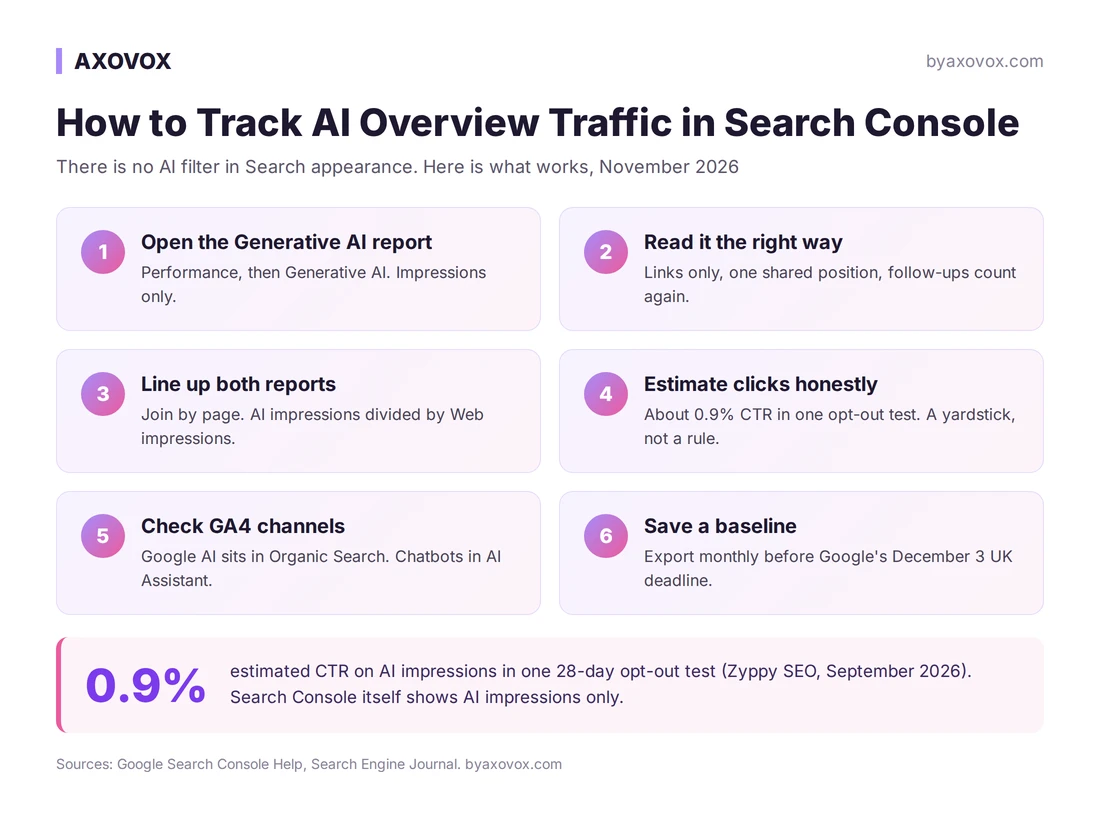
Step 1: Open the Generative AI report
In Search Console, pick your property and go to Performance. Next to Search results you should see a Generative AI report for Search (and a separate one for Discover). On some properties it appears as a “generative AI features” link under the main chart instead of a menu item.
Google started rolling it out on June 3, 2026 and says on its help page for the report that it reached all websites worldwide on August 31. If you still don’t see it, there are two likely reasons:
- Your site doesn’t have enough AI impressions yet. Common for small and new sites.
- Someone excluded the property under Settings, then Search generative AI. Check this first if you used to see AI data.
Step 2: Read the numbers the right way
An impression here means a link to your site was shown in an AI Overview or in AI Mode. A brand mention without a link doesn’t count. A few more rules from Google’s impressions and clicks documentation change how you should read the report:
- Every link inside one AI Overview shares the same position. “Position 2 in the AI answer” isn’t a thing.
- A follow-up question in AI Mode counts as a new query, so one chatty session can show your link several times.
- The chart counts per site and the Pages table counts per page. Two of your pages in one answer is one impression on the chart and two in the table. The totals won’t match, and that’s normal.
- The search type filter splits “Web: text-based” from “Web: multimodal” (Google Lens, Circle to Search, image uploads). If you sell physical products, check the multimodal side at least once.
One more thing before you compare months. Google’s data anomalies page logs an error that over-reported classic impressions from May 13, 2025 to April 27, 2026. Clicks weren’t affected. So compare clicks year over year, and impressions only from late April 2026 onward.
Step 3: Line up AI impressions with your classic report
This is where the report becomes useful. Pull the same 28 days from both reports and join them by page:
- In the Generative AI report, open the Pages tab and export.
- In the Performance report, set Search type to Web (not “all”, or Discover and News sneak in), open Pages and export.
- Join the two files by URL in a sheet. Add a column for AI share: AI impressions divided by Web impressions.
- Sort by AI share and look at clicks next to it.
A page with high AI share and falling clicks is probably being answered inside the AI box. A page with high AI share and steady leads is getting the visitors who want more than the summary. A page with zero AI impressions on a question-type topic is a rewrite candidate.
Regex is still useful, just in the classic report rather than an AI filter. In Performance, add a Query filter, choose Custom (regex) and paste:
^(how|why|what|which|when|where|is|can|does|best)\b
This shows your question-style searches. These are the kind AI Overviews usually answer, so it’s a good place to watch for clicks dropping while impressions hold. Just remember it tells you about the query type, not whether an AI Overview actually showed up.
Step 4: Estimate AI clicks without making them up
You can’t measure AI Overview clicks yet, so any number you report is an estimate. Say that out loud every time. The best public reference so far comes from Cyrus Shepard, who excluded his Zyppy SEO site from Google’s AI features for 28 days starting September 1, 2026, then compared it with the next 28 days, according to Search Engine Journal.
- AI features made up about 10% of the site’s impressions.
- They produced an estimated 21% of its Google clicks.
- Estimated CTR on AI impressions was about 0.9%, with 0.7% to 1.1% as a reasonable range. The site’s overall search CTR was around 0.4%.
Shepard himself calls it a single test on one site that had been optimized for AI citations, so use it as a directional yardstick. Pew Research’s 2025 browsing study points the same way: people clicked a link inside the AI summary on about 1% of visits where one appeared. In practice, 2,000 AI impressions in a month probably means tens of visits, not hundreds.
Want the full breakdown of where those clicks land? We covered it in our guide on where AI Mode clicks end up.
Step 5: Set up GA4 for the AI traffic you can see
GA4 won’t separate Google’s AI clicks either. Google’s default channel definitions say Organic Search includes AI Overviews and AI Mode, and the AI Assistant channel added in May 2026 excludes them.
That AI Assistant channel is still worth watching, because it covers the chatbots: ChatGPT, Gemini, Copilot and others. Go to Reports, then Acquisition, then Traffic acquisition, and look for the AI Assistant row. If you need source-level detail, switch the dimension to Session source and look for chatgpt.com, perplexity.ai and claude.ai. For the full setup with conversions, see how to track customers from ChatGPT.
Step 6: Save a baseline before December 3
The UK Competition and Markets Authority has given Google until December 3, 2026 to give publishers impressions, clicks and CTR for AI features, kept separate from normal organic results, through something like Search Console. Google hasn’t said how it will comply. Gary Illyes said in early November that the team has nothing to announce yet, as Search Engine Journal reported. The rules cover UK users, and nobody knows yet whether the data will appear globally.
Our advice doesn’t depend on the answer. Do the Step 3 export this month and save it. Add a Search Console annotation on December 3. If click data shows up, you’ll have a baseline to compare against. If it doesn’t, you’ve spent twenty minutes.
What you can track today
- AI Overview and AI Mode impressions by page, country, device and date
- AI share per page, compared with classic impressions and clicks
- Question-style queries in the classic report with regex
- ChatGPT, Gemini and Copilot visits in GA4’s AI Assistant channel
What you can’t track yet
- Clicks or CTR from AI Overviews
- Which queries triggered an AI answer with your link
- AI Overviews and AI Mode separately
- Answers where a competitor was cited and you weren’t
If you report SEO results to clients or a boss, set up the Step 3 sheet now. It’s the only honest way to explain flat clicks next to rising impressions. If you run one small site and the Generative AI report shows a handful of impressions, a quarterly look is enough. Spend the time on pages that can get cited instead. Our AI Overviews playbook covers that part.
Common questions
Is there a Generative AI filter in Search appearance?
No. Search appearance has no AI Overview or AI Mode option. AI data is in a separate Generative AI report under Performance, which shows impressions only.
Can I see AI Overview clicks in Search Console?
Not separately. Clicks on links in AI Overviews and AI Mode are counted as normal clicks in the Performance report under the Web search type, mixed with all other web clicks. Google is required to give UK publishers AI click data by December 3, 2026, but hasn’t announced how.
Can I see AI Overviews and AI Mode separately?
No. The Generative AI report gives one combined impressions number for both features. You can break it down by page, country, device, date and text versus multimodal search.
What is a normal CTR for AI Overview impressions?
No official number exists. One four-week opt-out test on the Zyppy SEO site in September 2026 estimated about 0.9%, with 0.7% to 1.1% as a reasonable range. Pew Research found people clicked a link inside an AI summary on about 1% of visits where one appeared.
How does AI Overview traffic show up in GA4?
As Organic Search, the same as a normal Google click. GA4’s AI Assistant channel, added in May 2026, excludes Google’s AI features and covers chatbots like ChatGPT, Gemini and Copilot instead.
Disclosure: information and opinion, not sponsored. No affiliate links. Google’s Search Console and GA4 help pages were checked on November 14, 2026. Google is due to add AI click data for UK publishers by December 3, 2026, so parts of this guide may change soon. We’ll update it when that happens.