My address bar has spoken ChatGPT for about a year now: three letters, space, question, answer with sources. No opening chatgpt.com, no waiting for the interface, no choosing a tab. The whole setup takes two minutes, and I’ll give you both versions, the official extension that replaces your search engine outright, and the shortcut method I actually use, which keeps Google as default and summons ChatGPT only when I ask.
One thing this guide has that most don’t: the URL parameter everyone omits. Paste the commonly shared address and your query opens as a plain chat, the model answering from memory; add one parameter and it runs a real web search with citations. The difference is the whole point, and it’s in Method 2.
- You can make ChatGPT your Chrome search engine with the official extension from openai.com, or with a custom shortcut.
- For the shortcut, use https://chatgpt.com/?q=%s&hints=search. The hints=search part turns on web search.
- If Chrome asks whether you meant to change your search engine, choose “Keep it”, or it reverts to Google.
- Add Perplexity, AI Mode and Claude shortcuts too, so each engine is two letters away.
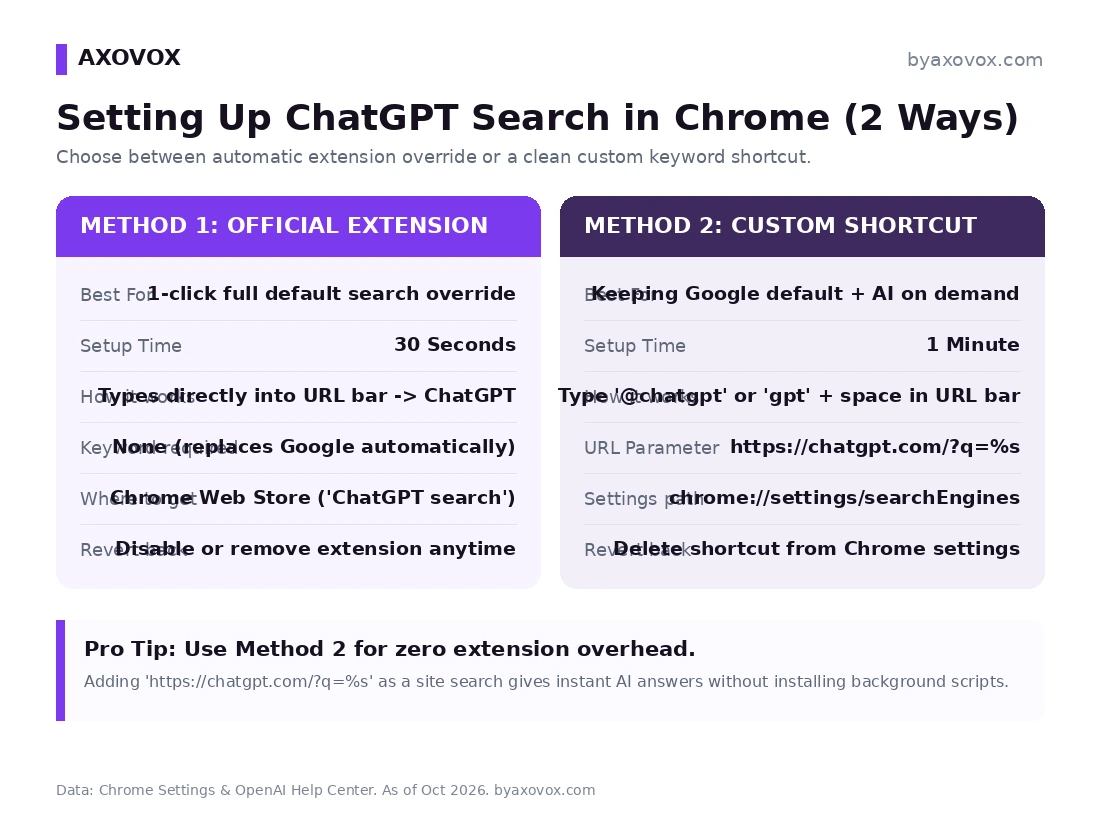
Method 1 (official extension): every single thing you type in the address bar goes to ChatGPT Search, no keyword needed. Full commitment.
Method 2 (built-in shortcut, my setup): Google stays default; typing gpt + Space flips the bar into ChatGPT for that one query. No extension, works under locked-down workplace Chrome, and reversible by simply not typing the shortcut.
Method 1: the official ChatGPT search extension
- Open the Chrome Web Store and search “ChatGPT search”, take the listing published by openai.com (impostors with similar names exist; the publisher line is your check)
- Click Add to Chrome → Add extension
- Chrome then shows its hijack-protection prompt: “This extension changed your search engine. Is this what you wanted?” Choose Keep it; picking “Change it back” silently reverts you to Google, which is the #1 “it didn’t work” cause
Test it: new tab, type anything, Enter. You land in ChatGPT’s search experience with live results and cited sources.
Method 2: the shortcut (no extension, and the parameter that matters)
Step 1: open the search engine settings
chrome://settings/searchEnginesOr the long way: three-dots menu → Settings → Search engine → Manage search engines and site search.
Step 2: add ChatGPT under Site search → Add
- Search engine: ChatGPT Search
- Shortcut:
gpt(or a singlecif you like living fast) - URL:
https://chatgpt.com/?q=%s&hints=search
The %s passes your typed text into ChatGPT; the hints=search is what forces an actual WEB SEARCH instead of a plain chat answer from the model’s memory. With just ?q=%s, ask about today’s news and you may get a confident answer frozen months in the past; with hints=search you get live results and sources. I learned this one the annoying way, wondering why my “search” shortcut kept answering from memory. Optional extra for the privacy-minded: append &temporary-chat=true and omnibox searches won’t pile up in your ChatGPT history.
Step 3: use it
- Focus the address bar (
Ctrl + L/Cmd + L) - Type
gpt, hit Space or Tab, the bar switches to “Search ChatGPT Search” - Type the question, Enter
Everything typed without the shortcut still goes to Google, which is exactly the arrangement I want: Google for navigation and quick lookups, ChatGPT for questions that deserve a composed answer.
Making the shortcut your absolute default (still no extension)
- Back to
chrome://settings/searchEngines - Find your ChatGPT Search entry under Site search
- Three-dots next to it → Make default
Now every bare query routes to ChatGPT with nothing running in the background. (Fair warning from my own trial week of this: you’ll miss Google’s instant navigation more than you expect; most people, me included, settle back on the shortcut arrangement.)
Bonus: the full AI shortcut stack (what’s on my Chrome)
Once you’ve added one, add them all; the same Site search screen takes every AI engine, and switching between them becomes a two-letter decision:
| Shortcut | Engine | URL to paste |
|---|---|---|
gpt | ChatGPT Search | https://chatgpt.com/?q=%s&hints=search |
px | Perplexity | https://www.perplexity.ai/search?q=%s |
aim | Google AI Mode | https://www.google.com/search?udm=50&q=%s |
cl | Claude | https://claude.ai/new?q=%s |
The udm=50 trick jumps straight into AI Mode without touching the regular results page; for how the engines differ on real queries, we ran the comparison in ChatGPT Search vs Google.
Troubleshooting
That’s Chrome’s search-hijack protection doing its job, usually because “Change it back” got clicked on the prompt, or an admin policy re-asserts defaults on restart. Check chrome://extensions to confirm the extension is enabled, or switch to Method 2: Site search entries never get reverted.
Your URL is missing hints=search. With a bare ?q=%s the query starts a normal chat; add the parameter and it runs the web search with citations. This is the single most common misconfiguration, because most guides publish the bare URL.
Both methods are running on my own Chrome as I write this; the shortcut stack table is literally my setup, and the hints=search and temporary-chat behavior is verified by using them daily, not copied from another listicle. Chrome’s UI strings and settings paths match the current stable release; if Chrome or OpenAI moves the furniture, this page gets updated, that’s house policy on setup guides.
FAQ
Is the ChatGPT Search Chrome extension free?
Yes, free from the Chrome Web Store, and web search works across ChatGPT’s Free, Plus, Team, Enterprise and Edu plans. Check the publisher reads openai.com before installing; lookalike extensions exist.
What is the exact URL to add ChatGPT as a custom search engine?
https://chatgpt.com/?q=%s&hints=search. The %s carries your query; hints=search forces a live web search instead of a plain chat answer. Without that second parameter you’ve built a chat shortcut, not a search engine.
Do I need to be logged into ChatGPT to search from the address bar?
No: logged-out searches work on chatgpt.com, with tighter limits. Logging in raises the limits and keeps history across devices, and if you use the temporary-chat parameter, omnibox searches stay out of that history.
Does this send my browsing history to OpenAI?
Your submitted queries go to whatever engine handles them, that’s the deal with any search engine, and if ChatGPT is your DEFAULT with Chrome’s search suggestions enabled, partial text can be sent as you type, same as it is to Google today. The shortcut method is the tidier privacy arrangement: only queries you deliberately prefix ever reach ChatGPT, and nothing else, no history, no tabs, no cookies from other sites.
Can I do this on mobile Chrome?
Not properly: mobile Chrome doesn’t take custom search URLs or extensions. The practical mobile answer is the ChatGPT app with its home-screen widget, one tap into search, which is what I use on the phone.
How do I switch back to Google?
chrome://settings/searchEngines → make Google default again; if you used the extension, disable or remove it at chrome://extensions. The shortcut version needs no undoing at all, just stop typing gpt.
Can I add Perplexity, Claude or Google AI Mode the same way?
Yes, identical mechanism with different URLs: perplexity.ai/search?q=%s, claude.ai/new?q=%s, and google.com/search?udm=50&q=%s for AI Mode. The full table with suggested shortcuts is in the bonus section above.