You want FAQ schema on a page, you googled how, and every result says the same thing: install another plugin. Your site already has twelve, each one slows things down a little more, and this feels like it should be simpler.
It is. FAQ schema is one block of JSON-LD text pasted into the page. WordPress can do it natively, no plugin, in about a minute, and it works on any theme. Here’s the method, a template you can steal, and the validation step most people skip.
The 60-second method
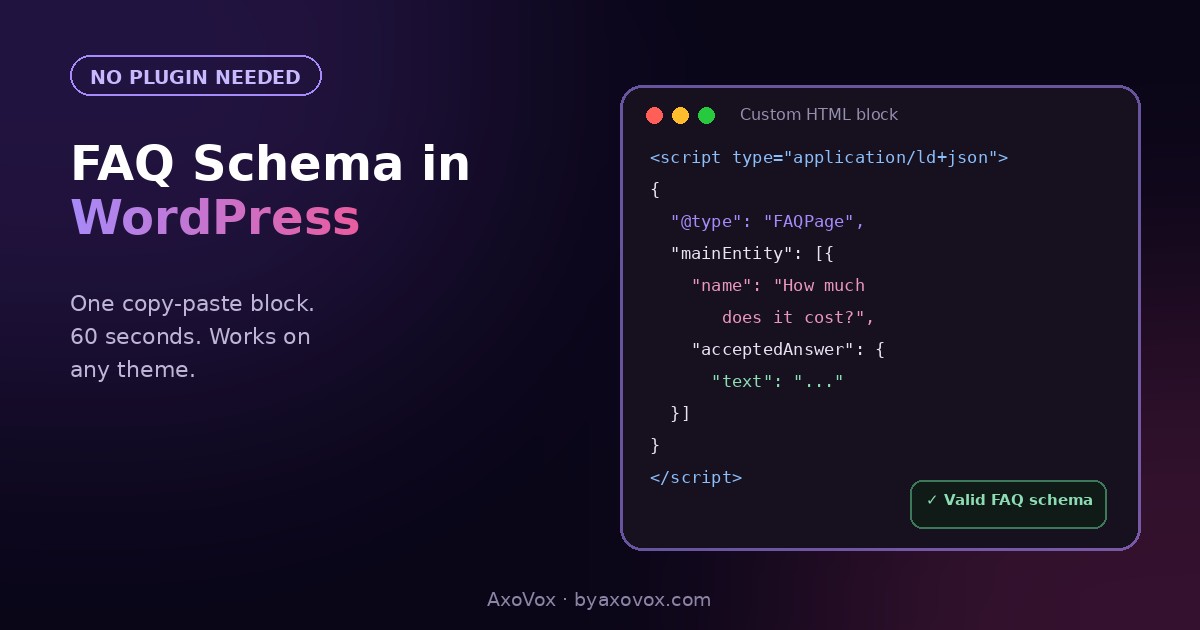
In the WordPress editor, add a Custom HTML block anywhere on the page (bottom is fine, it’s invisible to visitors). Paste your FAQ schema script into it. Update the page. That’s the entire installation.
Don’t want to write the JSON by hand? Our free FAQ schema generator builds a valid block from your questions, copy-paste ready.
What FAQ schema actually is
It’s a machine-readable copy of your questions and answers, in a format called JSON-LD, wrapped in a script tag. Visitors never see it. Google and AI systems read it and know, without guessing, that this page contains these exact Q&As.
What it earns you: eligibility for FAQ rich results, and a cleaner signal to the AI systems that quote content. What it doesn’t do: rank you by itself. Schema confirms structure; it doesn’t create quality. Weak answers with perfect markup stay weak, which is why the answer-writing rules from our content structure guide come first.
The template to steal
Copy this, swap in your own questions and answers, keep the shape identical:
<script type="application/ld+json">
{
  "@context": "https://schema.org",
  "@type": "FAQPage",
  "mainEntity": [
    {
      "@type": "Question",
      "name": "Your first question here?",
      "acceptedAnswer": {
        "@type": "Answer",
        "text": "Your answer here, plain text, one to three sentences."
      }
    },
    {
      "@type": "Question",
      "name": "Your second question here?",
      "acceptedAnswer": {
        "@type": "Answer",
        "text": "Second answer here."
      }
    }
  ]
}
</script>
To add more questions, duplicate one Question block and put a comma between blocks. To remove one, delete the block and its comma. The commas are where most hand-edits break; more on that below.
Adding it, step by step
In the Block editor (Gutenberg)
- Open the page or post, click + and add a Custom HTML block
- Paste the script (template above, or generator output)
- Update the page
- The block renders nothing on the page; it exists only in the source
In Classic editor
- Switch the editor to the Text tab (not Visual, it strips scripts)
- Paste the script at the bottom of the content
- Update, and don’t switch back to Visual before saving
The two rules that make it valid
- The visible page must show the same Q&As. Schema describing content that isn’t on the page violates Google’s guidelines. Write the FAQ section first, mark it up second.
- One FAQPage block per page. Two blocks compete and both get ignored. If Rank Math or another SEO plugin already outputs FAQ schema on that page, use theirs or yours, never both.
Will Google still show FAQ rich results?
Mostly for well-known authority sites these days; Google reduced FAQ rich results for everyone else in 2023. So why bother? Because the markup’s second job got bigger than its first: AI systems use structured Q&As as clean, liftable source material. You’re no longer marking up for the dropdown stars, you’re marking up to be quotable, and that game is open to every site. The background is in our GEO guide.
Validate it, 30 seconds
Paste your page URL into Google’s Rich Results Test (search “rich results test”, it’s the first result) after publishing. Green “FAQ” detection means the machines can read it. Errors almost always mean one of the breakages below.
If validation fails
“Parsing error” or invalid JSON. A missing or extra comma, 95% of the time. Every Question block ends with a comma except the last one. Quotes inside your answer text also break it; write them as \” or rephrase.
Curly quotes. Word, Google Docs and some phones convert straight quotes ” into curly ones “, which kills the JSON. Paste through a plain-text editor, or use the generator which outputs clean quotes.
The script shows as visible text on the page. You pasted into a Paragraph block or the Visual tab. Move it into a Custom HTML block (Gutenberg) or the Text tab (Classic).
Validator sees nothing at all. A caching or optimization plugin may be stripping inline scripts. Purge the cache and re-test; if it’s still gone, whitelist ld+json scripts in the optimizer’s settings.
Rich Results Test passes but Search Console complains later. Usually the mismatch rule: the page’s visible FAQs changed and the schema didn’t. Keep them in sync when you edit.
Where FAQ schema is worth adding
Not everywhere. It earns its minute on: service pages (the questions people ask before hiring), pricing pages, high-traffic blog posts with a genuine FAQ section, and your tools or product pages. Skip it on thin pages with manufactured questions; machines have gotten good at recognizing FAQ sections that exist only for the markup, and it costs the trust it’s supposed to build.
Common questions
How do I add FAQ schema in WordPress without a plugin?
Add a Custom HTML block to the page, paste a JSON-LD FAQPage script containing your questions and answers, and update. The block is invisible to visitors and readable by machines. Total time: about a minute.
Does FAQ schema still work in 2026?
Yes, with a changed payoff. FAQ rich results in Google are now mostly limited to authority sites, but the markup’s bigger job is feeding AI systems clean, quotable Q&A structure, and that benefit applies to every site.
Do I need a plugin for schema at all?
No. All schema types are just JSON-LD text in the page. Plugins add convenience (auto-generation, syncing), not capability. If you already run Rank Math, its schema features are fine too; just never output two FAQPage blocks on one page.
Where exactly do I paste the schema code?
Anywhere in the page content inside a Custom HTML block; bottom of the page is the common convention. It does not belong in the theme header unless you want it on every page, which for FAQ schema you don’t.
Why is my FAQ schema not showing in Google?
First check it validates in the Rich Results Test. If it validates but no rich result appears, that’s normal in 2026; eligibility isn’t a guarantee, and Google limits FAQ display. The markup still does its machine-readability job.
Can I put FAQ schema on multiple pages?
Yes, one block per page, each describing only that page’s visible questions. Don’t copy the same generic Q&As across pages; per-page, page-specific schema is the version that helps.