It arrived without asking: an AI Mode tab sitting in your results, an AI button creeping into Chrome’s search bar, a “Keep exploring with AI Mode” nudge under half your searches. You went looking for the setting that deletes it and found forum threads full of people looking for the same setting. There’s a reason you can’t find it.
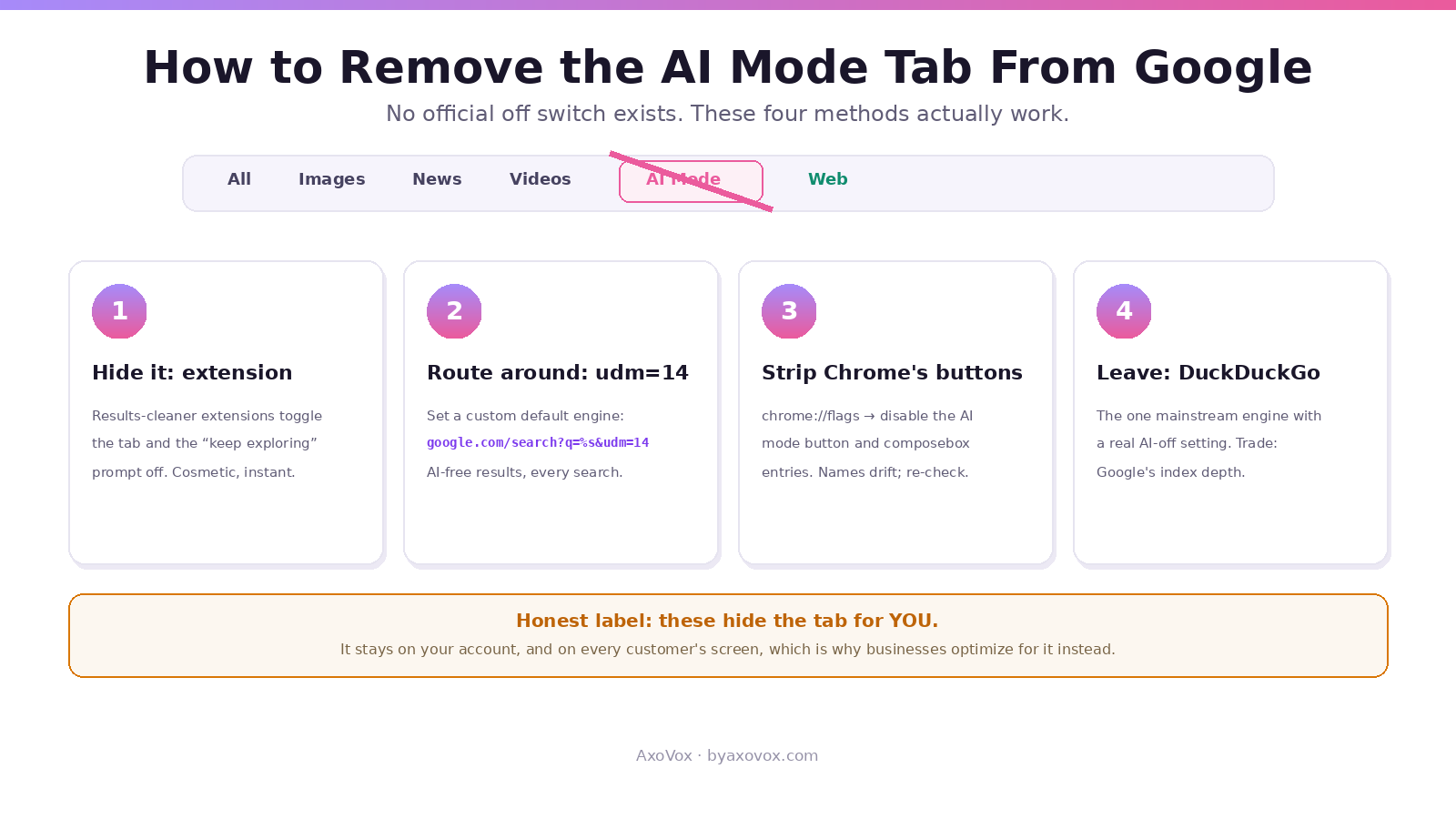
It doesn’t exist. Google ships no user setting that removes AI Mode or AI Overviews, and the old Labs toggle was retired for most accounts when the features went default. So “remove the tab” really means “stop seeing it,” and that IS achievable, four ways, from gentle to scorched-earth. What each one actually removes, honestly labeled, below.
The 2-minute version
The tab is inert until clicked. AI Mode never activates by itself, so ignoring it costs nothing. If seeing it is the problem: a results-cleaning browser extension hides the tab today; setting udm=14 as your default search gives you AI-free results pages where the whole AI layer stays behind; and Chrome’s hidden flags remove the AI buttons from the browser itself. Full steps for each below.
Method 1: hide it with an extension (easiest, cosmetic)
- Install a results-cleaner from the Chrome Web Store; the established ones (“Hide Google AI Overviews,” “Bye Bye, Google AI” and similar) now include toggles for the AI Mode tab and the “Keep exploring with AI Mode” prompt, not just the Overview box
- Tick the elements you want gone. The tab disappears from every results page on that browser
- Honest label: this is makeup, not surgery. The page still contains the AI elements; the extension hides them after load, and a Google redesign can break it for a few days until the extension updates. For pure visual peace, that trade is fine
Method 2: udm=14 as your default (most durable)
Google’s own Web filter serves results with no AI Overview and no AI furniture, and the URL parameter udm=14 requests it directly. Make it your default engine and the question mostly dissolves:
- Chrome: ⋮ → Settings → Search engine → Manage → Add. Name
Google Web, shortcut@web, URLhttps://www.google.com/search?q=%s&udm=14→ save → Make default - Firefox and Edge have the same custom-engine screens; on Android, Firefox accepts custom engines, and on iPhone a bookmarked udm=14 search is the workaround
- What you give up: shopping modules, some panels, the occasional map you wanted. The full trade-offs live in our AI Overviews off-switch guide, same machinery, same honest caveats
Method 3: strip the AI buttons out of Chrome itself
The AI icon in Chrome’s address bar and the AI compose box on the new-tab page come from the browser, not the results page, so extensions and udm=14 don’t touch them. Chrome’s experimental flags do:
- Type
chrome://flagsin the address bar - Search the flags list for “AI mode” and “composebox”: the current culprits are the realbox AI mode button flag (the search-bar icon) and the composebox flag (new-tab AI). Set each to Disabled, relaunch
- Caveat earned from experience: flag names shift between Chrome versions, and flags can vanish in updates. Search the list by keyword rather than hunting an exact name, and expect to revisit after major updates
Method 4: the scorched-earth option
If the objection is the whole AI-default direction, the clean exit is a search engine that ships a real off switch. DuckDuckGo lets you turn its AI features off in plain settings, which is exactly why it saw an install surge after Google’s 2026 I/O announcements. Switching costs you Google’s index depth on tricky queries; plenty of people pay it happily, and the pairing many land on is DDG for daily searching with a Google bookmark for the stubborn 10%.
What none of these methods do
Nothing here deletes AI Mode from your Google account; eligibility stays, and the tab reappears on any clean browser you touch, which is also why half the internet’s “found the hidden setting” posts are placebo. Nothing here affects what OTHER people see, either: your customers still get the AI answers, with or without your cosmetic fixes, which is the entire reason businesses now fight to be inside them rather than hide them (the two AI surfaces, explained). And comedy footnote: the same tab you’re removing is the one other people are desperately trying to GET; we wrote that guide too, and both articles answer email weekly.
Common questions
How do I remove the AI Mode tab from Google?
There’s no official setting. A results-cleaner extension hides the tab, udm=14 as your default search engine serves AI-free result pages, and Chrome’s flags remove the browser’s own AI buttons. The tab itself stays attached to your account and reappears on clean browsers.
Is there an official Google setting to turn off AI Mode?
No, and the old Search Labs toggle was retired for most accounts when AI features became the default. Workarounds route around the AI; nothing disables it account-wide.
Does the AI Mode tab do anything if I never click it?
No. Unlike AI Overviews, which appear uninvited, AI Mode only runs when you enter it. The tab is an inert doorway, which makes “just ignore it” a legitimate method zero.
How do I get rid of the “Keep exploring with AI Mode” prompt?
Same toolbox: the results-cleaner extensions now include a toggle for that prompt specifically, and udm=14 result pages don’t carry it at all.
How do I remove the AI button from Chrome’s search bar?
Through chrome://flags: search the list for the AI mode button and composebox entries, disable them, relaunch. Flag names drift between versions, so search by keyword.
Will udm=14 remove the AI Mode tab too?
Your default searches land on the Web-filtered page, bypassing the AI layer. Visit regular Google directly and the tab greets you as before; udm=14 changes your route, not your account.
Why did the AI Mode tab suddenly appear for me?
Rollout reached your account: AI Mode went default-on for most users through 2026, no opt-in asked. Eligibility is per account, which is why it can appear on your phone before your laptop.
Can I remove AI Mode on the Google mobile app?
Not via a setting. The practical mobile routes are a browser that accepts custom search engines (Firefox on Android with the udm=14 URL) or simply not tapping the tab; the app itself offers no removal.