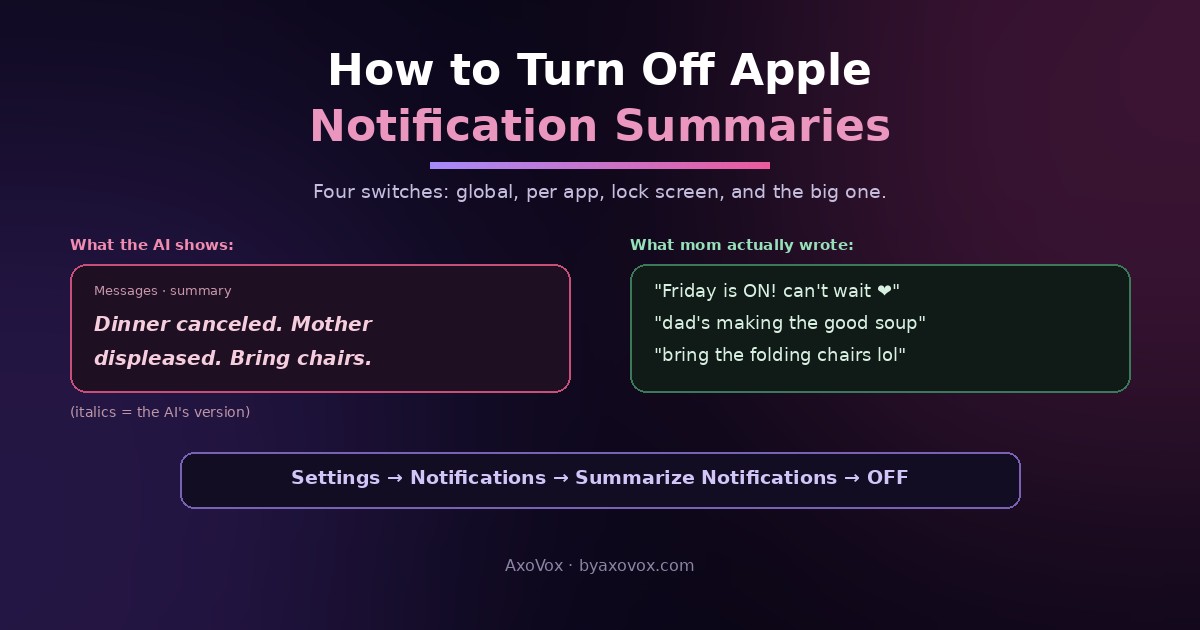
Your mom sends three warm messages about Friday dinner; your lock screen condenses them into something that reads like a police report. A sarcastic group chat becomes a factual bulletin. Apple’s notification summaries can’t do jokes, slang or human tone, and there’s a whole corner of the internet collecting their misreadings, some funny, some genuinely misleading.
Turning them off takes under a minute, and the useful part is knowing there are four different switches. The global toggle kills every summary; the per-app list keeps them where they work (email is decent) and removes them where they hurt (Messages); the lock-screen shortcut turns off an offending app on the spot; and the master Apple Intelligence switch takes the whole AI layer down. All four below, iPhone and Mac, plus the small tell that tips you off when an update quietly turns summaries back on.
The global off switch (30 seconds, iPhone)
Settings → Notifications → Summarize Notifications → toggle off.
That’s every AI summary gone; notifications return to showing what people actually wrote.
On a Mac: Apple menu → System Settings → Notifications → Summarize Notifications → off. Same switch, same result.
The smarter option: per app
Full honesty from testing on my own phone: summaries are bad at texts and decent at inboxes. Slang and sarcasm break them; “3 promotional emails, 1 shipping update” is genuinely useful. So instead of the global kill, open the same screen (Settings → Notifications → Summarize Notifications), leave the main toggle on, and go down the app list: Messages and WhatsApp off, email and delivery apps on. You keep the glanceable stuff and stop the machine from paraphrasing your family.
In iOS 26, news and entertainment apps sit behind their own category toggle with Apple’s own warning that summaries may contain errors, a caution earned the hard way after news-headline mistakes made international headlines themselves. Leaving that category off is the sane default.
Two more switches worth knowing
- The lock-screen shortcut: when a summary annoys you in the moment, swipe left on it → Options → Turn Off “[App]” Summaries. Done without visiting Settings
- Summaries inside apps: Mail and Messages also summarize within the app, separately from notifications. Settings → Apps → Messages (or Mail) → turn off Summarize Messages / summary options there
- The everything switch: Settings → Apple Intelligence & Siri → toggle Apple Intelligence off → confirm. Kills summaries plus Writing Tools, Genmoji, Image Playground and the rest of the AI layer in one move, and frees the storage the models occupy
The italics tell
Summarized notifications are always shown in italics, with a small summary glyph. That’s your detector: if a notification reads oddly and it’s italic, you’re reading the AI’s version, tap it to expand the real messages. And after big iOS updates, glance at your lock screen for italics creeping back; summaries have returned after updates before, and the italic font is the first thing that gives them away.
If summaries won’t die
Turned the toggle off, texts still summarized inside Messages. That’s the separate in-app setting: Settings → Apps → Messages → Summarize Messages off. Notification summaries and in-app summaries are two different switches wearing similar names.
No Summarize Notifications setting at all. Your device either doesn’t support Apple Intelligence (it needs iPhone 15 Pro or newer) or has Apple Intelligence turned off already, in which case there are no summaries to disable.
They came back after an update. Known behavior; re-flip the toggle. The italics tell above catches it early.
You want them off on your kid’s phone. Same switches on their device, or turn Apple Intelligence off entirely there; Screen Time doesn’t govern this setting separately.
Common questions
How do I turn off Apple Intelligence notification summaries?
Settings → Notifications → Summarize Notifications → off, on iPhone; System Settings → Notifications → Summarize Notifications on Mac. That disables all AI-generated notification summaries; per-app toggles on the same screen offer finer control.
How do I turn off summaries for just one app?
Two ways: the app list under Settings → Notifications → Summarize Notifications, or the shortcut, swipe left on the summary itself → Options → Turn Off that app’s summaries.
Why are my text messages being summarized wrong?
The summaries flatten tone: sarcasm, jokes, slang and emotional nuance get read literally, which is why Messages is where the feature misfires most. Turning it off for Messages while keeping it for email is the common fix.
How can I tell if a notification is an AI summary?
It’s displayed in italics with a summary indicator. Tap it to expand the original messages exactly as sent.
Which iPhones have notification summaries?
Apple Intelligence devices: iPhone 15 Pro and Pro Max, the iPhone 16 family and newer, with Apple Intelligence enabled. Older iPhones never show the feature.
Does turning off summaries disable Apple Intelligence?
No, it only stops notification summarizing. The master switch lives at Settings → Apple Intelligence & Siri, and turning Apple Intelligence off there removes summaries along with the rest of the AI features.
Why did notification summaries turn back on by themselves?
Major iOS updates have re-enabled or re-introduced summaries before, including the iOS 26 return of news-app summaries behind an extra warning. Check the toggle after big updates; italic notifications are the giveaway.